
How to Merge PDF Files Online (Free & Instant Tool)
Anyone who has ever emailed five separate PDF attachments instead of one tidy document knows the small but real frustration of scattered files. Whether it’s scanned receipts, chapters of a report, or multiple signed contracts, keeping everything in one place makes life noticeably easier, both for you and for whoever receives it.
In this guide, you’ll learn exactly what happens when documents are combined, why it matters for organization and professionalism, and how to merge PDF files online using a simple browser-based tool, without installing any desktop software.
What Does It Mean to Merge PDF Files?
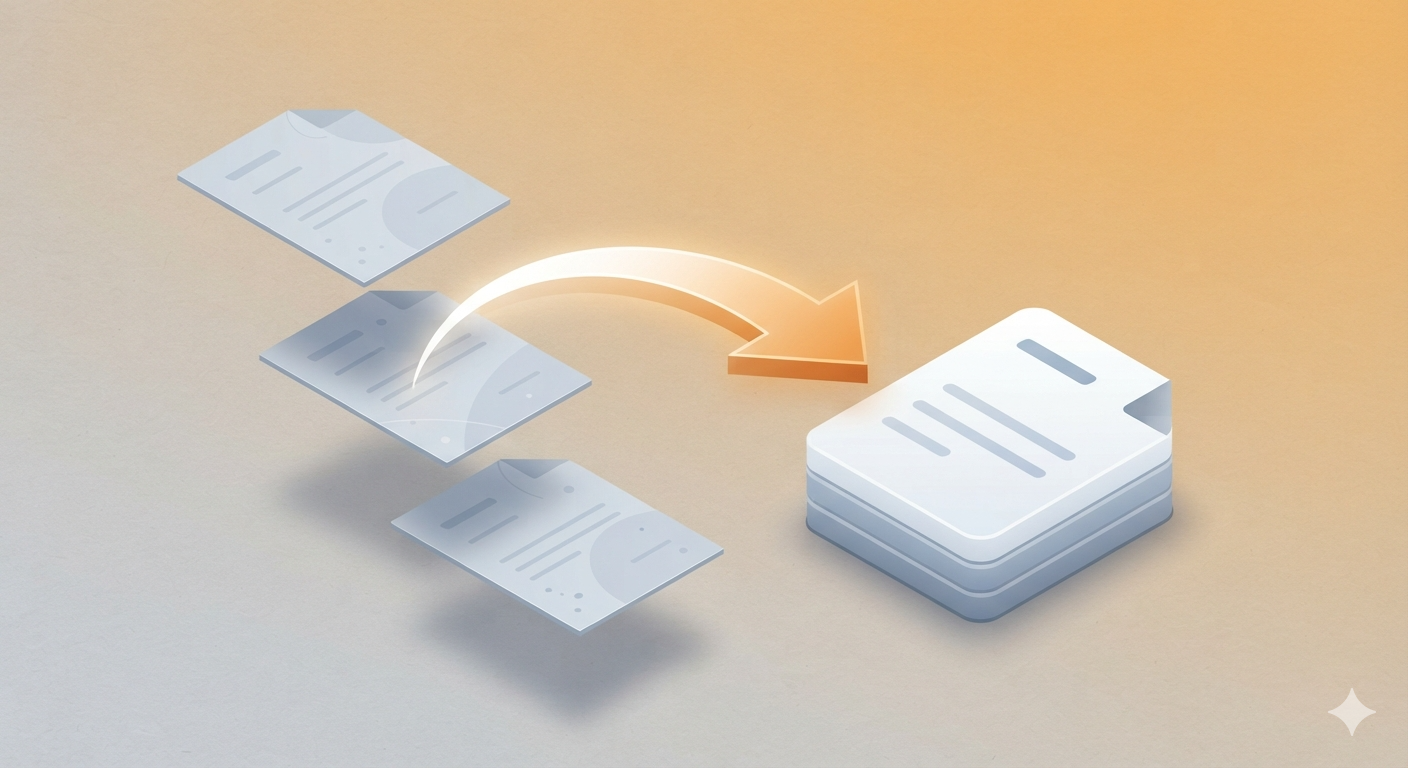
Merging PDF files means combining two or more separate PDF documents into a single, unified file while preserving the original formatting, images, and text of each page. Instead of juggling multiple attachments, you end up with one document that flows from start to finish in whatever order you choose.
Think of it like binding several loose chapters into one finished book. Each chapter keeps its own content exactly as written, but now they live under one cover, numbered and organized, instead of being scattered across your desk as separate stacks of paper.
How Does It Work When You Merge PDF Files Online?
A dedicated Merge PDF tool reads the internal structure of each uploaded file, extracts every page in sequence, and stitches them together into a new combined document without altering the underlying content. The result opens and behaves exactly like any standard PDF, just with more pages inside it.
Where This Comes in Handy in Real Life
Combining scanned receipts for expense reports, joining multiple chapters of an ebook or thesis, merging signed contract pages from different parties, and assembling a complete portfolio from separate work samples are all common everyday uses for this process.
Why Merge Your PDF Documents?
Scattered files create unnecessary friction. A recipient has to open several attachments separately, lose track of order, or struggle to find the right one buried in an inbox. A single combined document solves all of that instantly.
Cleaner Organization
One file is far easier to store, name, and locate later than five or six separate documents scattered across folders or email threads.
Easier Sharing
Sending a single attachment instead of multiple files simplifies emailing, uploading to portals, and printing everything in the correct sequence.
Professional Presentation
Job applications, proposals, and reports look noticeably more polished when delivered as one cohesive document rather than a scattered handful of files.
Simplified Record-Keeping
Businesses and individuals archiving invoices, contracts, or tax documents benefit from consolidating related pages into a single, easy-to-retrieve file.
Step-by-Step: How to Merge PDF Files Online
You don’t need Adobe Acrobat or any paid desktop software to merge PDF files online. A browser-based tool handles the entire process in just a few clicks.
- Open the tool: Visit the Merge PDF page on SmartWebHub.
- Upload your files: Select or drag in all the PDF documents you want to combine.
- Arrange the order: Drag and reorder the uploaded files so the final document flows correctly.
- Click Merge: The tool instantly combines everything into a single PDF.
- Download your file: Save the newly merged document to your device or upload it wherever needed.
Using This Tool Alongside Other PDF Utilities
Many people who merge PDF files online also need related tasks handled afterward. If the combined file is too large to email, running it through Compress PDF shrinks it down, while PDF to Word is useful if you need to edit the final content later.
Manual Method vs Using an Online Tool
Some people try to combine documents manually by printing pages and rescanning them together, or by using clunky, outdated desktop software. Here’s how that compares to a modern online approach:
| Factor | Manual / Print & Rescan | Online Merge Tool |
|---|---|---|
| Speed | Slow, multi-step process | Instant, one click |
| Quality | Risk of quality loss from rescanning | Original quality preserved |
| Learning Curve | Requires scanner/software setup | No technical skill needed |
| File Ordering | Difficult to rearrange after scanning | Simple drag-and-drop reordering |
| Accessibility | Needs printer/scanner hardware | Works on any browser/device |
| Cost | Free but time-expensive | Free and time-efficient |
Common Mistakes to Avoid
1. Uploading Files in the Wrong Order
Forgetting to check the arrangement before combining often results in a document that reads out of sequence. Always preview the order before finalizing.
2. Merging Password-Protected Files Without Unlocking Them First
Some tools can’t process encrypted PDFs directly. If a file is locked, run it through Unlock PDF before attempting to merge it with others.
3. Not Checking the Final File Before Sending
Always open the completed document once to confirm every page merged correctly before you email or upload it somewhere important.
4. Ignoring File Size After Combining
Merging many large files can produce an oversized document. If it’s too big for email, compress it afterward before sharing.
Best Practices When You Merge PDF Files Online
- Double-check page order before finalizing, especially when combining more than two or three documents.
- Learn more about the PDF file format’s technical background on Wikipedia.
- Unlock any password-protected files first using Unlock PDF before attempting to combine them.
- Compress the final merged file with Compress PDF if it becomes too large to email easily.
- Convert the merged document with PDF to Word if you need to make further text edits afterward.
- Bookmark this page any time you need to quickly merge PDF files online without installing extra software.
Best Use Cases: Combining Invoices, Joining Report Chapters, Merging Signed Contracts, Assembling Portfolios, Consolidating Scanned Pages
Always keep your original individual files as backups before merging, just in case you need them separately again later.
Frequently Asked Questions
How do I merge PDF files online for free?
Upload your files into a free online tool, arrange them in order, click combine, and download the single merged document instantly.
Is it safe to merge PDF files online?
Reputable tools process files securely and typically delete uploads after a short period. Avoid uploading highly sensitive files unless you’ve verified the service’s privacy policy.
Can I change the page order while merging PDFs?
Yes, most tools let you drag and rearrange uploaded files before combining, so the final document follows your intended sequence.
Does merging PDFs reduce the quality of the original files?
No, a proper merge tool combines existing pages without recompressing or altering content, so quality remains exactly as it was.
Is there a limit to how many PDFs I can merge at once?
Most free tools allow several files at once, though very large batches or oversized files may occasionally hit a limit depending on the service.
Ready to combine your documents instantly? Try the Merge PDF tool now and merge PDF files online with zero hassle.
Merge PDF Files Now →