
How to Convert PDF to Word Online (Free & Instant Tool)
Anyone who has ever received a contract, resume template, or old report only in PDF format knows the specific frustration of wanting to change a single sentence and realizing the file simply won’t let you. PDFs are great for preserving layout, but that same strength becomes a limitation the moment you actually need to edit something.
In this guide, you’ll learn exactly what happens during this type of conversion, where it works best, and how to convert PDF to Word online using a simple browser-based tool, without installing any desktop software.
What Does It Mean to Convert PDF to Word?
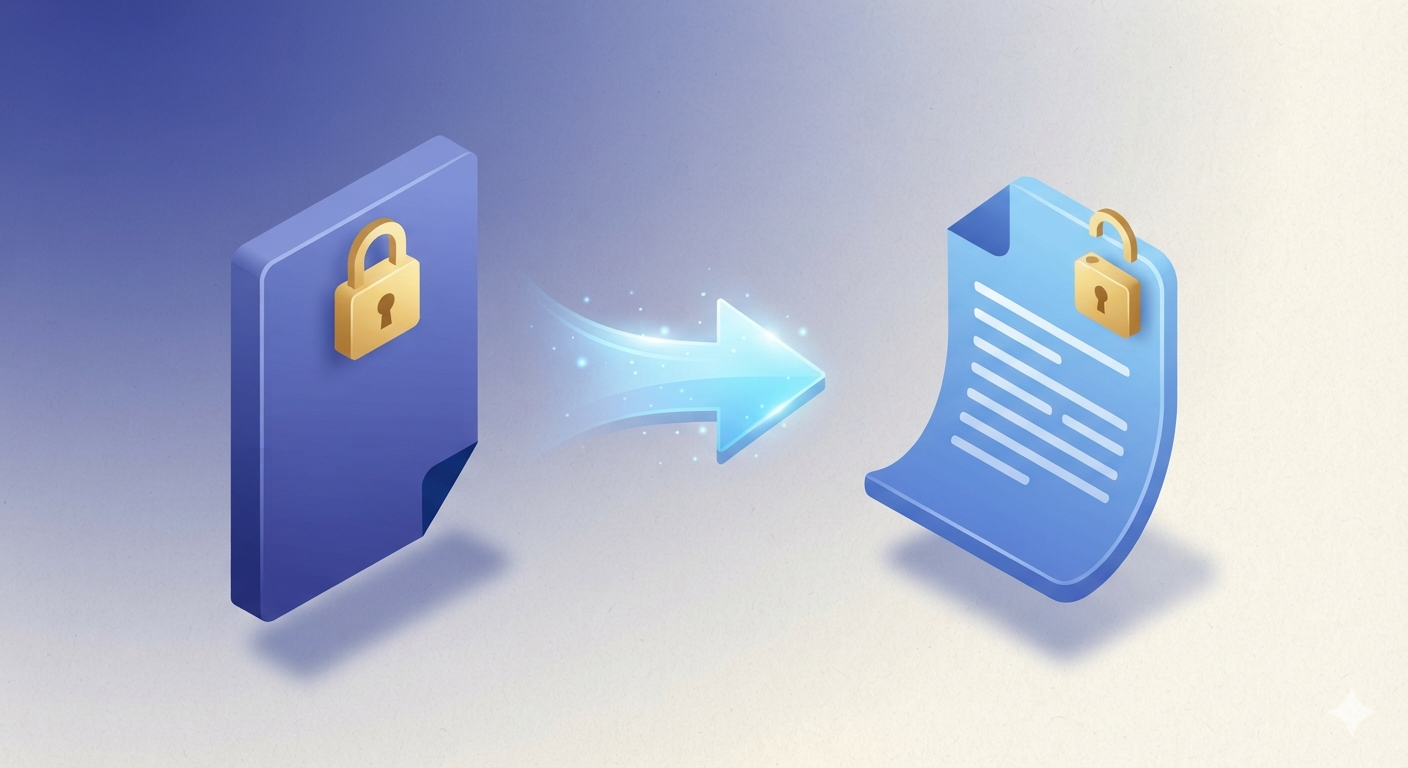
Converting a PDF to Word means transforming a fixed, uneditable document format into a fully editable DOCX file that can be opened and modified in Microsoft Word or similar software. The process reconstructs text, images, tables, and layout so the document behaves like a normal word processor file rather than a static page.
Think of it like turning a printed photograph back into its original digital file. The image looks the same at first glance, but suddenly you can adjust, edit, and rearrange elements that were previously frozen in place.
How Does It Work When You Convert PDF to Word Online?
A dedicated PDF to Word tool analyzes the document’s internal structure, identifying text blocks, fonts, images, and tables, then rebuilds them inside an editable Word file. For scanned documents, optical character recognition reads the visual text and converts it into genuine, selectable words rather than a flat image.
Where This Comes in Handy in Real Life
Updating an old resume saved only as a PDF, editing a contract template for a new client, repurposing a report’s content for a new proposal, and fixing typos in a form that was originally exported as a static file are all common everyday uses for this process.
Why Convert Your PDF to an Editable Format?
PDFs are designed to look identical everywhere, which is exactly why they resist editing. The moment you need to change even a single word, that same consistency becomes an obstacle rather than a benefit.
Saves Time on Retyping
Recreating a multi-page document from scratch just to make small edits wastes significant time. Conversion preserves the original content so you only adjust what’s necessary.
Enables Content Reuse
Pulling text and tables from an old PDF report into a new document becomes effortless once the content is editable again.
Simplifies Corrections
Fixing a typo, updating a date, or correcting outdated information is far easier in an editable Word file than trying to work around a locked PDF.
Supports Template Reuse
Old contracts, forms, or letters saved only as PDFs become reusable templates once converted back into an editable format.
Step-by-Step: How to Convert PDF to Word Online
You don’t need expensive software licenses to convert PDF to Word online. A browser-based tool handles the entire process in just a few clicks.
- Open the tool: Visit the PDF to Word page on SmartWebHub.
- Upload your file: Select or drag in the PDF document you want to convert.
- Start the conversion: Click convert and let the tool process your document.
- Review the output: Check the resulting Word file to confirm formatting looks correct.
- Download your file: Save the editable DOCX document to your device.
Using This Tool Alongside Other PDF Utilities
People who convert PDF to Word online often need related tasks handled beforehand. If the original file is password-protected, run it through Unlock PDF first, or combine multiple source documents using Merge PDF before converting the final result.
Manual Method vs Using an Online Tool
Recreating a document manually by retyping every line and rebuilding tables from scratch is possible but incredibly time-consuming for anything beyond a single page. Here’s how the approaches compare:
| Factor | Manual / Retyping from Scratch | Online Conversion Tool |
|---|---|---|
| Speed | Very slow, line-by-line retyping | Instant, one click |
| Accuracy | High risk of typos and layout errors | Structure-aware, accurate output |
| Learning Curve | Requires careful manual formatting | No technical skill needed |
| Handles Tables/Images | Extremely tedious to rebuild | Reconstructs automatically |
| Accessibility | Needs significant time investment | Works on any browser/device |
| Cost | Free but time-expensive | Free and time-efficient |
Common Mistakes to Avoid
1. Skipping a Review of the Converted File
Always check the output for formatting shifts before making edits. Complex layouts occasionally need minor manual adjustments after conversion.
2. Converting a Locked PDF Without Unlocking It First
Password-protected files often can’t be processed directly. Unlock the document first using Unlock PDF before attempting conversion.
3. Expecting Perfect Results From Low-Quality Scans
Blurry or low-resolution scanned PDFs can confuse text recognition, leading to errors in the converted text that need manual correction.
4. Forgetting to Save a Copy of the Original PDF
Always keep the original file as a reference in case you need to compare it against the converted version later.
Best Practices When You Convert PDF to Word Online
- Always review the converted document for formatting accuracy before making further edits.
- Learn more about the PDF file format’s technical background on Wikipedia.
- Unlock any password-protected files first using Unlock PDF before attempting conversion.
- Combine multiple source PDFs with Merge PDF before converting them together as one document.
- If you need the reverse process later, use Word to PDF to convert your edited file back into a shareable PDF.
- Bookmark this page any time you need to quickly convert PDF to Word online without installing extra software.
Best Use Cases: Editing Contracts, Updating Resumes, Reusing Report Content, Fixing Typos in Forms, Repurposing Old Templates
Always keep your original PDF as a backup before making significant edits to the converted version.
Frequently Asked Questions
How do I convert PDF to Word online for free?
Upload your PDF into a free online converter, wait a few seconds for processing, and download the editable Word document instantly.
Does converting a PDF to Word preserve the original formatting?
A good converter preserves most formatting, though complex designs or scanned documents may need minor manual adjustments afterward.
Can I convert a scanned PDF to an editable Word file?
Yes, if the converter uses optical character recognition, it can read scanned text and turn it into fully editable content.
Is it safe to convert sensitive PDF documents online?
Reputable tools delete uploaded files after a short period, but for highly confidential documents, always review the service’s privacy policy first.
Why would I need a PDF as an editable Word document?
Editable formats let you update text, fix errors, reuse content, or repurpose old reports and forms without retyping everything.
Ready to make your document editable instantly? Try the PDF to Word tool now and convert PDF to Word online with zero hassle.
Convert PDF to Word Now →